
Welcome to the Together courses — powered by AI! This is the Installation and Setup lesson: you set up the environment once, and the same environment works for every track in the Together family. The good news is that “everything ready” costs one question today: your ProjectAdm token. Nothing else.
The rhythm is always the same — the AI proposes, you decide — and every track runs on the same tools.
1. There is nothing to install
This section is usually the longest one in a technical course. Here it fits in three lines, and that is deliberate — the friction of installing an environment teaches you nothing about the subject.
- Python comes inside the course package (in the
pythonfolder). You do not download Python, do not tick “Add to PATH”, do not runpip installanything. If you already have Python installed, that is fine: the course uses what came in the package and ignores the rest. - ProjectAdm runs in your browser — a free account, nothing to install.
- Your AI is already open in a tab — ChatGPT, Gemini, Claude, DeepSeek, or any other that writes text. The course installs no extension, asks for no API key and does not choose for you: it hands you a prompt and expects text back.
- A computer with a stable internet connection (a phone alone will not do).
2. The three setup steps
- Download and extract the course package — here it is:
BPM Together — course package →
(Taking a different Together course? Every package is on Standard installation.) Actually extract it (right-click → Extract All): you do not run a course from inside the.zip. This is cause no. 1 of “nothing happens when I click”. - Create your free ProjectAdm account at projectadm.com and generate a token (your profile → API Keys → Generate New Token). Give it a name, tick the permissions — include Delete, which is useful if you ever want to redo a step — and copy the token somewhere safe. It is the only thing you will type.
- Double-click
Iniciar.bat(Windows) orIniciar.command(Mac). It asks for the token — and that is all. Then it creates your board in ProjectAdm, saves everything by itself and opens the course menu.
Windows may show a blue warning (“Windows protected your PC”) the first time — that is the standard behaviour for a file downloaded from the internet. Click More info → Run anyway. On a Mac, right-click Iniciar.command → Open.
Never share the .env file in the folder and never paste your token into a prompt: the token is yours.
3. The cycle of a step (it is always the same)
This is the heart of the method, and it holds for every content step of any Together track. Five movements:
- You pick the step in the menu. It hands you the prompt — on screen and already on your clipboard.
- You paste the prompt into your AI (
Ctrl+V). Before you send it, look at the end of the prompt: if it ends with a passage between«...», that is not content — it is a reminder of what you write there. Replace it (the« »quotes go with it) and only then send. - The AI answers. You read it, cut what does not fit, correct what it could not have known.
- You paste the whole answer into the “0. Inbox” card on your board.
- You pick the same step again. It reads the board, distributes everything across the cards and clears the Inbox.
Running a step is always safe. If the answer is not in the card yet, it simply hands you the prompt again. There is no way to “break” the order.
Why the answer comes in through the board, and not through a file. Because that is what makes the board the source of truth. Correcting something on the card changes the prompt of the next step. It is the same reason you never open a .py file: you should not have to edit Python to do this work.
4. Setup checklist
- Course package downloaded and extracted (actually extracted, not opened from inside the
.zip). - Free ProjectAdm account created and token generated.
Iniciar.bat/Iniciar.commandrun, token entered, board created.- The course menu opened.
- An AI open in a browser tab.
(You do not need to tick anything about Python, PATH, pip or the .env file — there is none of that to do.)
5. Frequently asked questions
Do I need to know how to program?
No. In every Together course you use ready-made prompts and review what the AI proposes. You never edit a .py file.
Are the tools paid?
No. ProjectAdm has a free account, Python comes inside the package, and for the AI there is always a free option — we point to the best one of the moment in this guide, because that is the part that changes over time.
How long does it take?
Minutes. Extract the package, create the account, generate the token, double-click Iniciar. There is no installation to wait for.
Clicking Iniciar opens nothing. What now?
Confirm that you extracted the .zip. Running from inside the compressed file is the most common cause by a wide margin.
ProjectAdm refused my token.
Generate another one (profile → API Keys) and paste it again, with no spaces before or after. Iniciar only accepts a token that actually works against the API — it tests before saving.
Conclusion and next steps
With the environment ready, you are set for the next lesson — where the content starts. This same environment works for every Together course: set it up once and it is ready for good.
Setup common to the Together courses. Independent of tooling.
Project Together
Track your progress through PMBOK 8
Create your free account to save your reading progress, earn points on every quiz, and unlock certificates as you master each domain.
Create Free Account →Free forever • No credit card required
Go deeper in the book
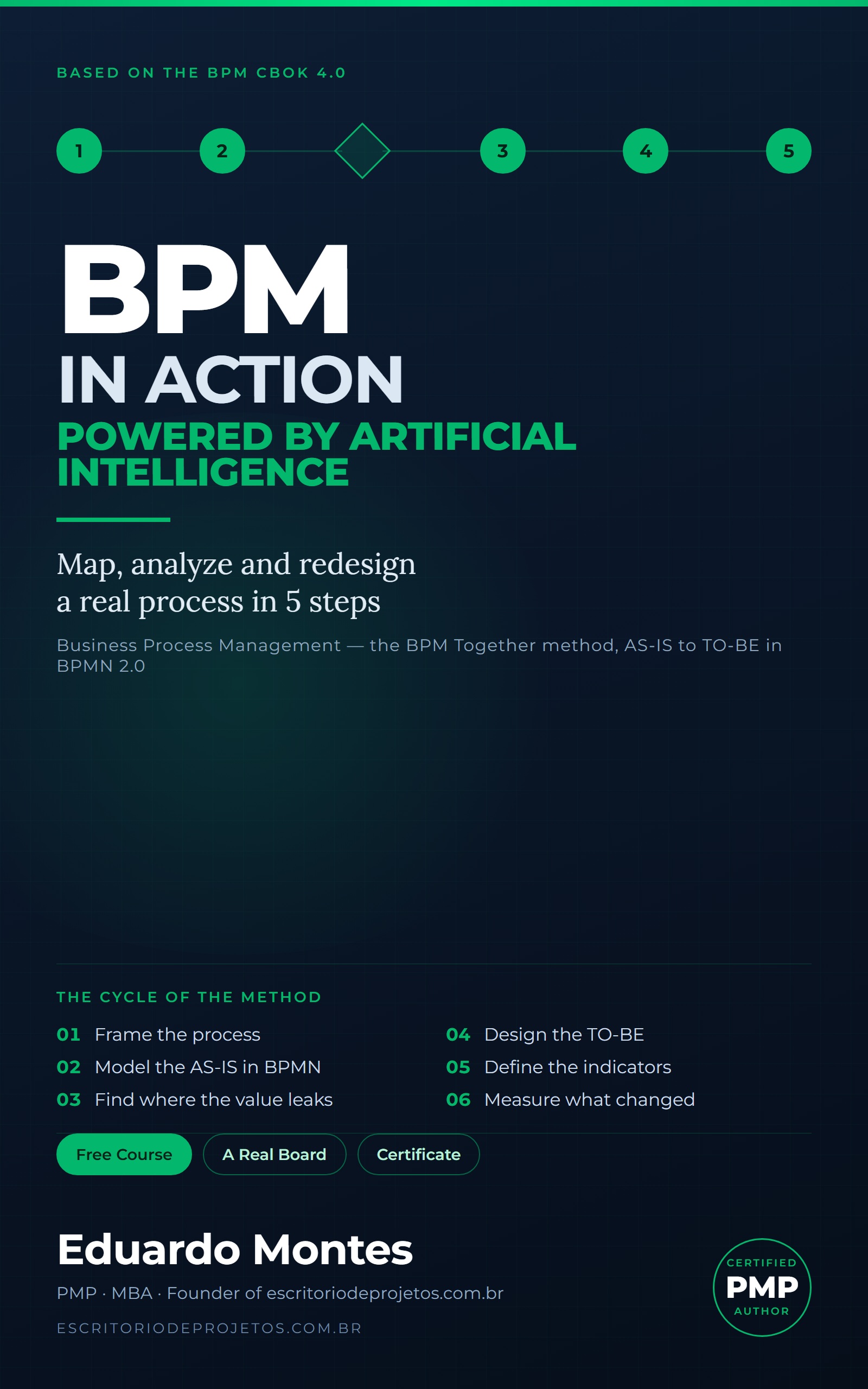
BPM in Action
Map, analyze and redesign one real process of your own in 5 steps — from the AS-IS draft to a BPMN 2.0 diagram, with AI at every phase.
See the book — US$ 5.99 →
 Project Management