
You do not need to install anything on your computer — no Python, no editor. The course package already carries everything inside it. It is four steps, once, in about 5 minutes.
1. Create your Premium account on ProjectAdm
It is free for 3 months. This is where your project will live — the board you are going to build step by step.
Create my Premium account on ProjectAdm →
2. Generate your token
Inside ProjectAdm, open your profile and go to API Keys. Click to generate a key and copy the code that appears (it starts with pmo_).
Keep it for a moment — you will paste it in step 4. The token is your key: do not share it with anyone.
3. Download your course package, unblock it and extract it
Pick the course you are taking. From here on, the steps are the same for all of them:
Project Together — powered by AI →
PMBOK 8 Together →
Agile Together →
BPM Together →
Before extracting, unblock the file. Everything you download from the internet arrives with a mark on it, and Windows blocks marked files (“this file may not be safe”). Removing the mark takes 5 seconds and settles it for good:
Right-click the .zip you have just downloaded → Properties → tick Unblock (bottom corner) → OK.
Now go ahead: right-click the file → “Extract all…”. Click Browse and choose the folder where you will keep the course. A suggestion: a simple folder at the root of the disk, named after the course — c:\project-together, c:\pmbok8-together.
One folder per course. If you take more than one, give each its own folder: every course keeps its own settings and its own board in there, and extracting a second one on top of the first would overwrite the project you already have going.
Do extract it — do not work from inside the .zip, or the course will not run.
4. Click Start and paste the token
Open the folder you extracted and double-click start.bat (on a Mac: start.command).
If Windows still complains that the file “may not be safe”, right-click start.bat and choose Run as administrator — and allow it to run. That happens when the .zip was extracted without the Unblock step above.
A black window will open and it will ask for one single thing: your token. Paste it (Ctrl+V) and press Enter.
From there it handles the rest: it creates the course portfolio in your ProjectAdm and the board where your project will live, saves the configuration and opens the course menu. You will never have to type that again.
That is all
Next time, just click start.bat again: it goes straight to the menu, where you follow the steps of the course.
Portfolio, board… which is which?
In ProjectAdm, the portfolio is the folder that groups your work — here, the course one. The board is the one that matters: the board is your project. It is where you will build the project charter, the scope, the risks, the schedule — step by step, all the way to delivery.
And the artificial intelligence?
You use the one you already have, in your browser (ChatGPT, Gemini, Claude…). The course hands you the prompt ready: you paste it into the AI, it answers, you paste the answer onto your board. There is nothing to install.
The result can vary from one AI to another — in general, the better your AI, the better the answer tends to be. If you have two or more at hand, it is worth pasting the same prompt into each and keeping the result that makes most sense for your reality — including merging the answers when that creates more value for your project. The prompt is the same; who decides what goes onto the board is you.
If it asks you to create the portfolio
On some accounts ProjectAdm does not yet allow creating the portfolio through the API. If that happens, it tells you on screen exactly what to do: open ProjectAdm, create a New Portfolio with the name shown on screen, come back to the course window and press Enter.
Only the portfolio — the board it creates itself, inside the portfolio you have just made. It matters that the portfolio is created by you on the site: a portfolio created through the API ends up with no owner, and anything inside it would never reach the course.
The course updates itself
When a new version ships, the course notices it on its own the next time you open it and offers to update — and the update preserves your .env: your token, your board and your progress stay exactly as they are. You can also update whenever you like through option 0 of the menu.
Project Together
Track your progress through PMBOK 8
Create your free account to save your reading progress, earn points on every quiz, and unlock certificates as you master each domain.
Create Free Account →Free forever • No credit card required
QUIZ
Want to test what you learned from this article?
One multiple-choice question + one practical reflection. Earn Project Together points!
Go deeper in the book
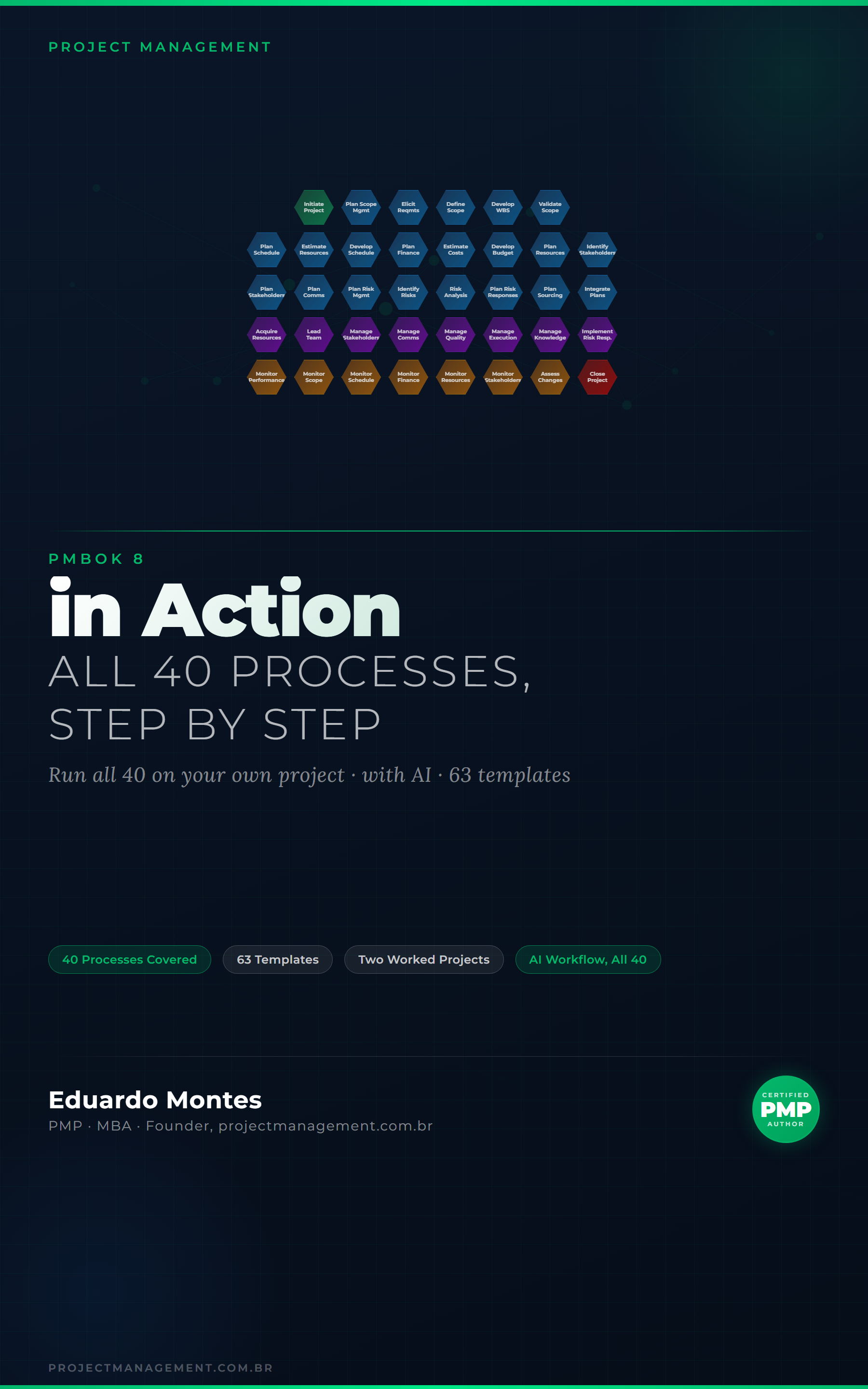
PMBOK 8 in Action
The 40 processes of the PMBOK 8 Guide applied to one real project, with the finished artefact at every step.
See the book — US$ 9.98 →
 Project Management